Demos
Demo 1: Aerial drone and ground vehicle navigation
Simultaneous aerial drone and Autonomous Ground Vehicle (AGV) navigation using CyberCortex.AI.
Running the demo.
Quick start
First, depending on your operating system, download and unpack the CyC_example_Windows.zip or CyC_example_Linux_Ubuntu_x86-64.zip archive from the CyC_example releases page.
In command line, navigate to 'CyC_example/bin' and start the DataBlock.
Linux:
./App_CycCore ../etc/datablocks/example.conf
Windows:
App_CycCore.exe ..\etc\datablocks\example.conf
In the Windows Firewall popup, click 'Allow':

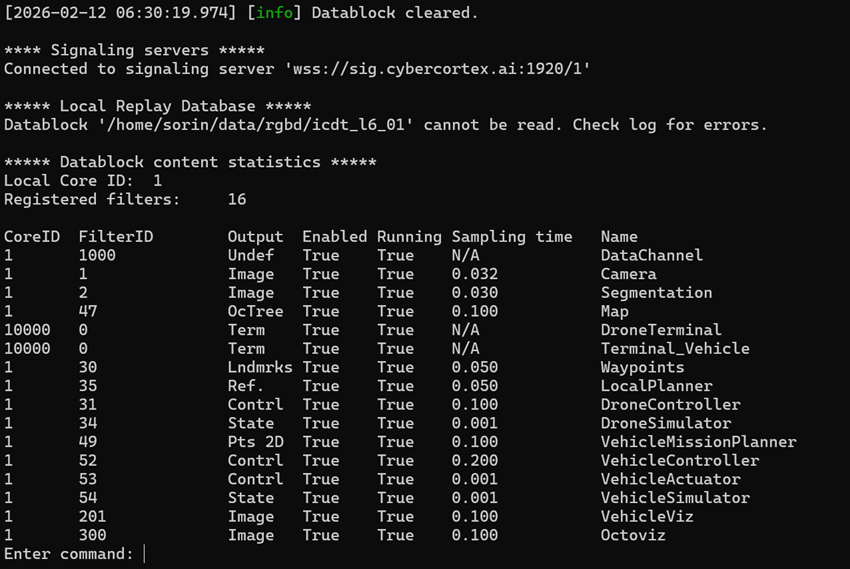
The datablock will boot, showing the loaded filters and their sampling time:
If the 'octoviz' filter is enabled, the 3D opengl visualization will start automatically.
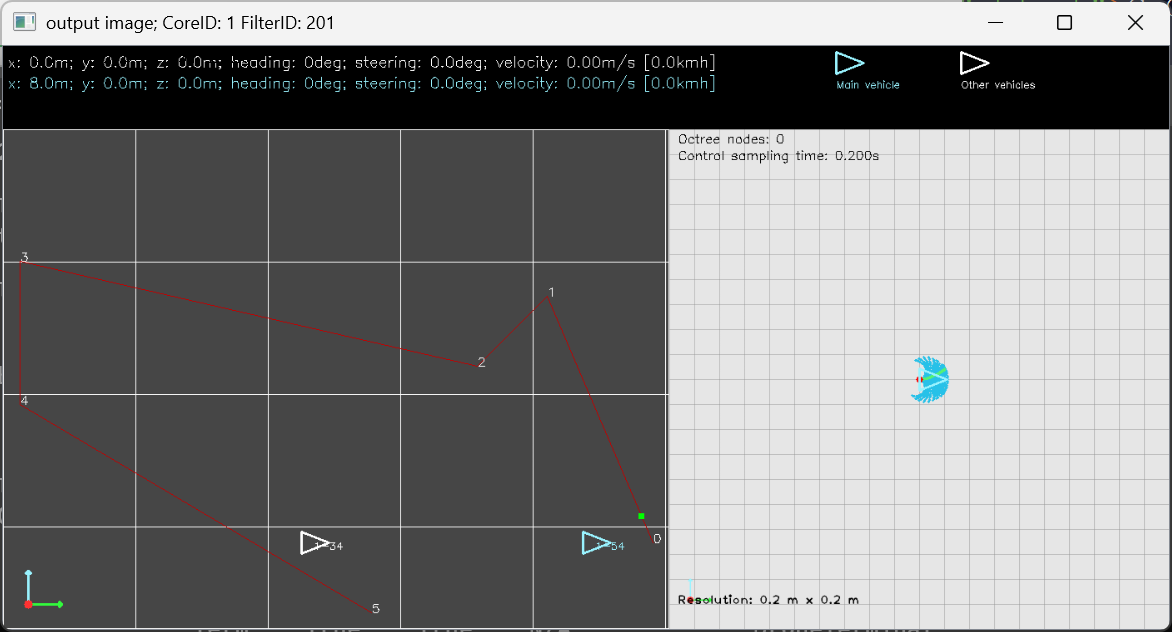
At the end of the DataBlock, the 'Enter command:' text shows that the user can enter a filter ID for inspecting its output. For example, entering '201' (tap Enter twice in windows) will show the output of the VehicleViz filter:
Fleet management (Droids)
In order to visualize and pass commands to the DataBlock, go to CyC droids, our fleet management system and Login with your username and password.
If you do not have an account, press Register and create a free account.
In the DataBlock configuration file 'etc/datablocks/example.conf', copy and paste your username and the generated token in the parameters of the DataChannel filter:

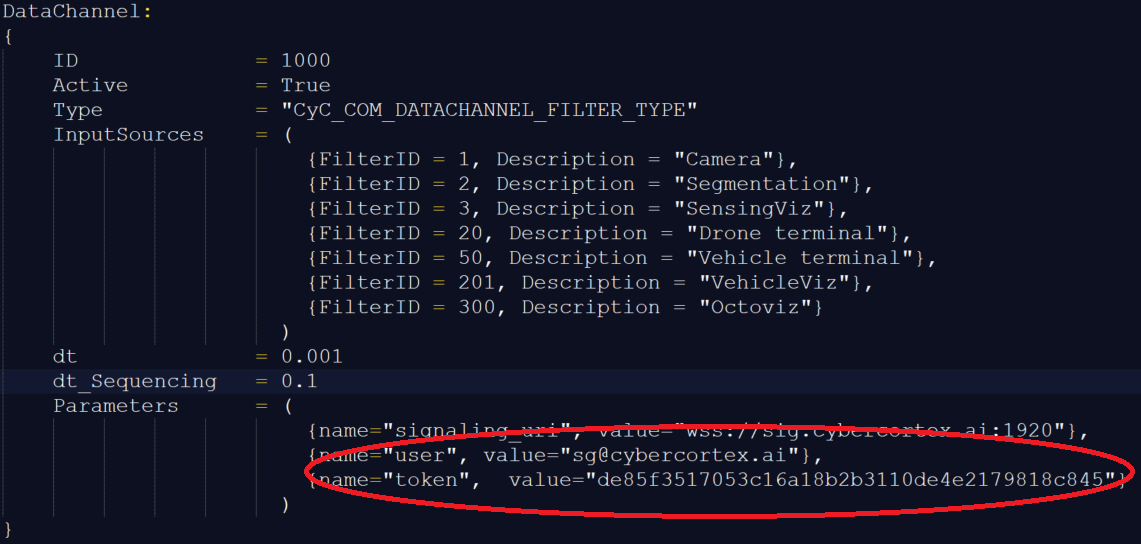
Replace the Web Core ID value with 10000. This is required for the biderectional communication between your browser and the example DataBlock running on your computer:

Click on the list of Signaling Servers:

The DataBlocks currently running for your registered username will be displayed:
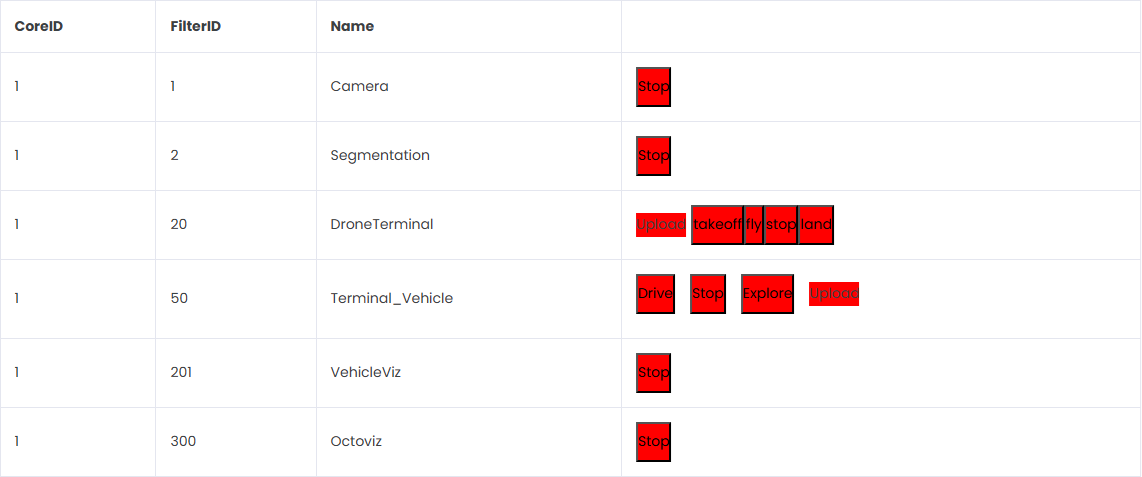
The output of each displayed filter can be visualized by clicking on it. Input commands can be given to the aerial drone and the ground vehicle via the 'Terminal' filters (press fly / drive).